
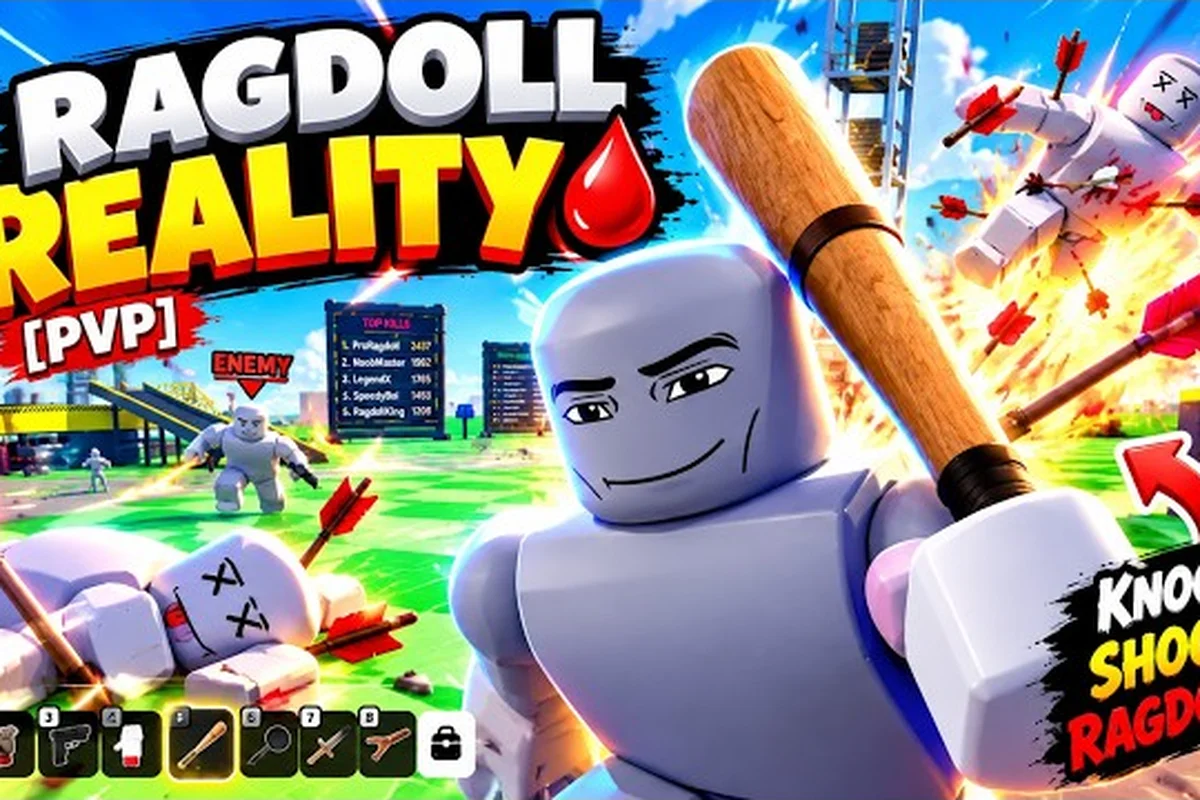
Ragdoll reality settings can determine whether the physics sandbox feels smooth or frustrating, especially when lag appears during crowded weapon tests and hazard interactions. This guide explains which changes help, how to separate client problems from server issues, and what to check when the game will not load or perform consistently.
Settings for Smoother Performance
Ragdoll Reality uses Roblox’s standard graphics and control options, so the most effective adjustments come from the platform rather than a separate in-game configuration panel. Lowering the most demanding visual quality levels, reducing unnecessary effects, and keeping the client updated can improve ragdoll reality performance without changing the weapons or hazards that make the sandbox interesting.
The official Ragdoll Reality game page lists more than 20 weapons, including the Minigun, Rocket Launcher, Flamethrower, and C4. It also names an 80-stud tower, a Shredder, a train, a wrecking ball, a spike pit, a human cannon, and a seesaw. Those objects can create visually heavy moments, which is why sensible display settings matter even though the game does not publish a bespoke keybind list.
Start with the highest-impact changes
Roblox normally saves graphics preferences on the account that is signed in, so changing the wrong menu or a temporary client can make it appear that the settings did not save. Begin with the graphics quality controls, then test the same scene under a consistent camera angle.
| Adjustment | Recommended starting point | Why it helps |
|---|---|---|
| Graphics quality | Medium | Balances visible effects with a lower rendering load |
| Mesh quality | Lower | Reduces geometric detail in crowded scenes |
| Texture quality | Lower | Limits texture memory and upload pressure |
| Shadow quality | Off or lower | Removes a frequent source of GPU overhead |
| Reflections | Off or lower | Reduces repeated scene-rendering work |
| View distance | Lower on older devices | Limits distant objects and map detail |
| Character quality | Lower | Simplifies avatar rendering |
| UI quality | Automatic | Preserves readability without unnecessary visual work |
Lower every graphics option to its minimum only as a diagnostic, including Graphics quality, Mesh quality, Texture quality, Shadow quality, Reflections, View distance, Character quality, and UI quality. Keep the camera angle and scene unchanged, then compare frame stability with the recommended starting values in the table. If the lag disappears at minimum settings, raise one control at a time—starting with Graphics quality—and note when the slowdown returns; that identifies which rendering tier exceeds the device’s practical GPU, memory, or upload limit.
Save, restart, and verify
After changing a setting, close Roblox completely and relaunch it. The client should reload the selected account and apply the saved graphics profile. If the visuals do not change, sign out and back in, check that the game is open through the same account, and update the Roblox client before making further changes.
A useful comparison is to repeat the same activity on two clients. For example, stand near the tower, use the Minigun briefly, and then enter the train area. If only one client stutters, the issue probably belongs to that device, its graphics profile, or a local background process. If both clients show the same delay, the server or current player load may be contributing.
Lag Diagnosis Checklist
Lag in this game can come from rendering, network delay, server congestion, or a local application conflict. The practical approach is to identify the type of ragdoll reality lag before changing settings, because lowering graphics will not solve every kind of delay.
| Symptom | Most likely category | Practical response |
|---|---|---|
| Characters and scenery stutter | Rendering or graphics load | Lower shadows, reflections, textures, and mesh quality |
| Actions register late | Network delay | Check connection, close bandwidth-heavy apps, and rejoin |
| The scene freezes briefly | Server load or physics processing | Wait for the server to clear, then test a new session |
| Menus feel sluggish | Client or system pressure | Restart Roblox and close unused browser tabs |
| Physics looks wrong | Game or client bug | Rejoin, restart, and record the exact sequence |
| One weapon or object behaves oddly | Object-specific issue | Test it again in a controlled area before reporting it |
This diagnosis prevents a common mistake: treating every pause as a graphics problem. Roblox physics can be affected by many interacting objects, and the official page identifies a hazardous playground with several moving or destructive elements. Even a well-optimized client may need time for the server to process a busy scene.
Separate visual stutter from input delay
Visual stutter appears as a repeated hitch while the camera, character, or weapon animation continues to move. Input delay instead occurs when a button press reaches the character late. Watch the on-screen character and the result of an action at the same time.
If the character stops while the camera continues, test the same action on another platform or client. If the character acts immediately but the screen refreshes unevenly, adjust the graphics profile. When both character movement and visuals pause together, restarting the client is more useful than repeatedly changing the quality level.
Players learning the game’s actions can also compare the Ragdoll Reality control guide, which covers grabbing, throwing, attacking, and weapon switching. Correct controls reduce repeated attempts and make it easier to determine whether an apparent lag issue is actually a missed input.
Platform, Client, and Network Checks
Ragdoll Reality is a Roblox experience, and device support follows Roblox rather than a separate hardware specification published by the game. The ragdoll reality platform answer is therefore based on the Roblox client available for the device, its current operating system, and the quality settings that platform exposes.
| Platform | Available approach | Main performance concern |
|---|---|---|
| Windows PC | Roblox desktop client | Graphics settings, background programs, and heat management |
| Mobile | Roblox mobile app | Battery limits, device temperature, and reduced graphics presets |
| Console | Roblox console client | Network stability and the limits of the available display options |
| Browser | Roblox website | Tab pressure, browser acceleration, and extension conflicts |
Windows players should close demanding background programs, save battery power, and make sure the Roblox client is current. Mobile players should test with the device charged, allow the game to cool down if it has become warm, and reduce visual quality before restarting. Console and browser users should keep the system and network connection stable.
Improve the network side
Open a speed test while the game is running, but do not treat the advertised headline speed as the only metric. Packet loss, latency, and Wi-Fi stability can matter more during server activity. Use Ethernet or a strong 5 GHz connection when available, move farther from congested wireless networks, and close live-streaming or large file-transfer applications.
After changing the network path, fully restart Roblox and rejoin. The game is listed with a one-player server limit and no private-server or VIP option as of the October 25, 2026 page data, so there is no co-op input layer to configure. A laggy session cannot be fixed by adding a friend to the same instance.
Fixing a Bug or Failed Load
A genuine ragdoll reality bug should be separated from temporary server strain, client instability, and expected physics behavior. The game’s official description includes lethal hazards, but it does not publish damage amounts, respawn timing, weapon damage, ammunition totals, or cooldown values. Do not assume that an unpublished number explains an unusual result.
First, confirm whether the problem actually follows the account’s saved ragdoll reality settings or is tied to one server session. A failed load, a ragdoll reality lag spike, and a reproducible ragdoll reality bug are not interchangeable: settings can preserve movement or physics preferences across sessions, while server-side object state may disappear after a rejoin. For example, if clipping through scenery occurs only with one weapon after a respawn, test the same weapon and input sequence in a clear area before changing any setting. Because the game publishes no confirmed damage, cooldown, or respawn values, a single unusual result is not enough evidence to label it a settings problem.
-
Exit the current server and return to the experience.
-
Restart the Roblox client rather than immediately repeating the same action.
-
Open another Roblox experience to confirm that the client and account are working.
-
Test the suspicious weapon, hazard, or movement sequence in a less crowded place.
-
Record the device, client version, control method, and precise steps if the issue repeats.
| Failure point | What to check | Expected next step |
|---|---|---|
| Game will not open | Roblox client status and account connection | Update or restart Roblox, then retry |
| Loading stalls | Network stability and current server demand | Rejoin later or change the network path |
| Character clips through scenery | Exact object and repeated input sequence | Treat as a physics bug if it reproduces |
| Weapon animation breaks | Weapon choice, nearby objects, and respawn | Test after respawning in a clear area |
| Settings reset | Signed-in account and client persistence | Reapply settings and fully restart the client |
A complete client restart often clears temporary rendering state, while a server restart changes the session. This distinction matters because repeating a broken action inside the same instance may preserve the same object state and produce the same result. For example, if a weapon animation freezes after a respawn, restart the Roblox client and test the same weapon; if the fault persists after rejoining a fresh server, it is more likely tied to the weapon, hazard, or movement sequence than to the saved ragdoll reality settings.
Use the official description carefully
The official game page is the best authority for what the experience contains: more than 20 weapons, the 12 named examples, the playground hazards, and the 80-stud tower. It does not provide a full settings guide, exact hazard damage, or detailed weapon statistics, so community claims about those values should be treated as version-dependent reports unless the developer confirms them.
If a bug blocks progression or a core action, report it through Roblox’s normal issue process with concise reproduction details. Include what happened, what you expected, and whether restarting changed the result. The Ragdoll Reality join and rejoin guide provides a practical sequence for clearing a failed session before troubleshooting deeper problems.
Graphics Presets for Different Devices
The best settings depend on the device rather than a single universally optimal preset. These profiles offer starting points, and each should be tested in a busy part of the map because the tower and multiple hazards provide a better workload than an empty spawn area.
| Device profile | Graphics | Shadows and reflections | Textures and meshes | View distance |
|---|---|---|---|---|
| Older laptop | Low | Off | Lower | Low |
| Recent gaming PC | Medium | Lower | Medium | Medium |
| High-end desktop | Medium to high | Medium | High | High, if stable |
| Recent phone | Low | Off | Lower | Low |
| Older phone | Minimum available | Off | Minimum | Low |
A modern device can still lag when a laptop is thermally limited, background applications are consuming memory, or a Wi-Fi connection is unstable. Conversely, a lower preset may make an older device responsive without materially changing the core experience because the map still contains the same hazards and weapons.
Find the stable ceiling
Change one category at a time and test for at least 30 seconds in the same location. This is more reliable than a quick walk near spawn. A useful trial includes weapon switching, moving around the tower, and observing a moving hazard such as the train or wrecking ball. Keep notes on whether the camera freezes, actions arrive late, or the entire session disconnects.
Do not interpret one isolated hiccup as a persistent defect. Server demand changes, and the public page reported approximately 55,700 concurrent players on October 25, 2026, indicating a popular experience whose server load can vary. For example, if camera stutter briefly appears during a crowded tower encounter but weapon switching and movement recover afterward, record it as a temporary ragdoll reality lag event. Repeat the same route and check whether the stall recurs at a specific hazard, such as the train or wrecking ball, before changing graphics or physics settings to address a possible ragdoll reality bug.
Device-Specific Recommendations and Known Constraints
Windows, mobile, console, and browser clients expose different controls, so an identical preset is not always possible. The ragdoll reality performance goal should be stable control and short load times, not simply the highest texture setting. The platform-specific mobile controls overview can help confirm that touch input is working correctly before deeper performance changes are made.
Desktop and browser checks
On Windows, disable overlays that record video or track performance if they cause conflicts, and keep the Roblox client updated. Use the official game page rather than an old browser tab that may load a cached experience version. In a browser, close unused tabs and disable extensions temporarily when diagnosing a stutter.
A graphics preset is only part of desktop preparation. Hardware acceleration, outdated drivers, and power-saving mode can also affect rendering. Restart the computer after major client or driver changes, because a fresh start prevents old processes from competing with Roblox.
Mobile, console, and free-access checks
On mobile, thermal throttling is a major practical concern. Lower quality settings, keep the device charged, and allow it to cool before another long session. On consoles, maintain a stable network and restart the console client if the experience remains stuck. Browser users should verify that hardware acceleration is available and avoid running other demanding browser processes.
Players asking ragdoll reality is it free can confirm access through the official Roblox game page: it is a Roblox experience, and the experience itself can be entered without a separate premium title purchase. Roblox account access, age and privacy settings, and any applicable regional platform rules can still affect how the game appears to a particular player.
Frequently Asked Questions
Is Ragdoll Reality free to play?
Ragdoll Reality is a Roblox experience that can be accessed through the official game page without buying a separate premium game. Players still need a Roblox account, and regional availability, age settings, and platform policies can affect access. The experience page is the reliable place to confirm its current listing and any platform-specific restrictions.
What are the best Ragdoll Reality settings for performance?
Start with graphics quality at Medium, shadows and reflections off or lower, textures and meshes lower, and view distance low on older devices. Restart Roblox after every change and test the same busy location. The ideal preset is the highest setting that keeps movement, actions, and physics stable for the player’s hardware.
Why does Ragdoll Reality lag after I enter the map?
The delay may come from graphics rendering, unstable network latency, server demand, or temporary client state. Test whether the character moves normally while the camera stutters, restart the client, close bandwidth-heavy applications, and try a new session. If the same action consistently fails after those steps, it may be a reproducible game bug.
Can I fix a Ragdoll Reality bug by changing graphics settings?
Graphics adjustments may help when the issue is caused by rendering load, but they cannot correct every physics, weapon, or server problem. Restart and rejoin first, reproduce the issue in a controlled area, and record the exact object and action involved. If the behavior persists independently of graphics quality, report the steps through Roblox’s normal support process.
Which platforms can play Ragdoll Reality?
Ragdoll Reality can be accessed through Roblox-supported platforms, including Windows, mobile, console, and browser clients, although available settings vary by device. The official page describes it as a Roblox experience rather than publishing separate hardware requirements. Keep the platform client updated and use a stable network connection.