
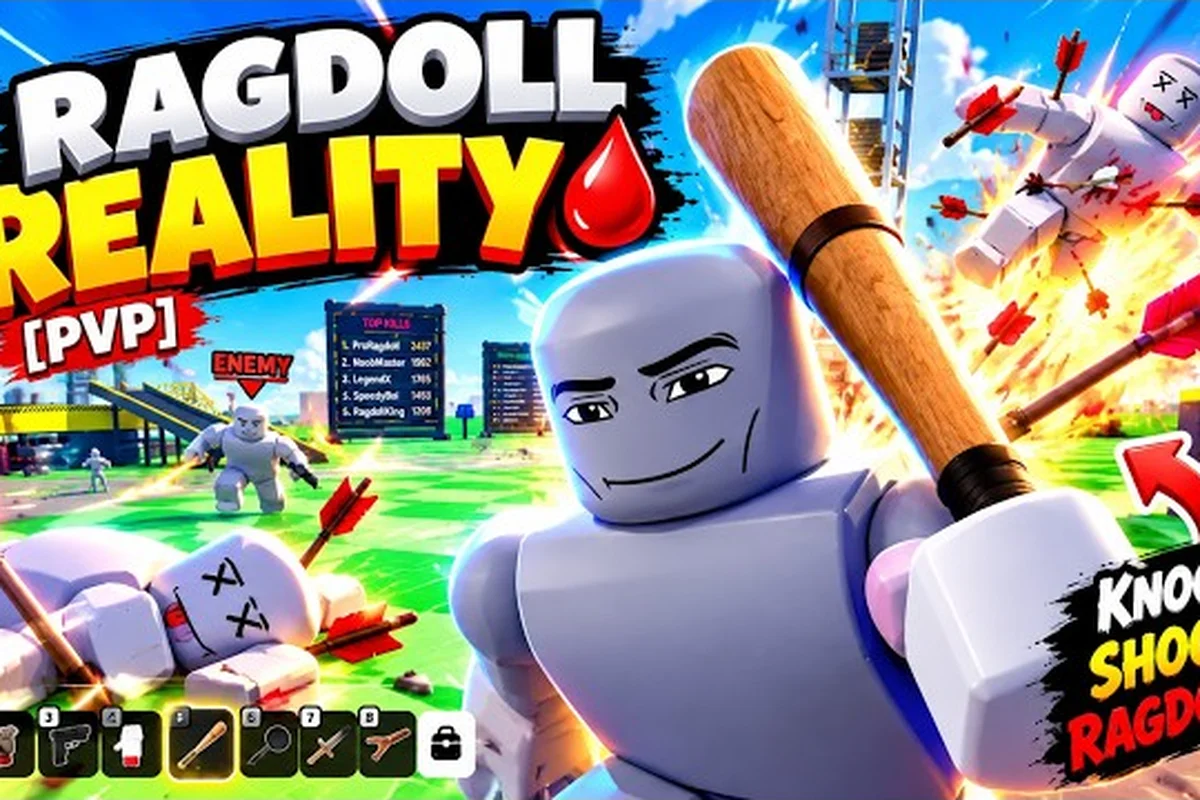
Ragdoll Reality control guide basics matter because quick inputs let you turn clumsy physics into deliberate attacks. Learn the standard Roblox controls, then chain grabbing, throwing, punching, and weapons to control the battlefield.
Control Guide Overview
Ragdoll Reality uses the standard Roblox control scheme rather than publishing a separate set of custom keybinds. That means most of your basic movement already feels familiar: the usual arrow keys or WASD keys move your character, the spacebar jumps, and the mouse controls the camera. The more important part is learning how those standard inputs translate into physical actions inside the sandbox.
The official Ragdoll Reality game page on Roblox identifies grabbing, pushing, throwing, weapon use, and weapon switching as core actions, but it does not publish a dedicated control chart with exact button assignments. As a result, the best way to learn is to test the nearby prompts and action labels in your own session, starting with the Grab Action, Throw Action, and Punch Action.
| Control area | Standard interaction | Main purpose | What to watch for |
|---|---|---|---|
| Movement | Arrow keys or WASD | Move around the playground | Physics can shift momentum during collisions |
| Camera | Mouse | Aim your view | Face a target before grabbing or attacking |
| Jump | Spacebar | Jump or change height | Useful for repositioning around hazards |
| Grab | Action prompt near a target | Hold or carry a ragdoll | Watch the on-screen prompt for available input |
| Throw | Action prompt while holding a target | Launch a grabbed target | Direction depends on camera and movement input |
| Attack | Action prompt near a target | Punch, push, or use an equipped weapon | Some actions may depend on the selected mode |
The controls to learn first
Start with movement and camera control, because nearly every other action depends on where your character is facing. Keep the camera pointed toward the target, walk close enough for the interaction prompt to appear, and then test the assigned action button. This simple loop prevents a common beginner problem: pressing an attack while looking away from the intended target.
Next, isolate one action at a time rather than holding several keys together. A grab can turn into a throw, and a punch can be followed by a weapon attack, but mixing inputs too early makes the result difficult to understand. Practice each action in a safe area, then add movement and camera adjustments once the basic response feels predictable.
The game’s public server information also matters for control testing. As of October 25, 2026, the official page lists a one-player server limit and no VIP servers, so there is no cooperative teammate input system to learn. The Ragdoll Reality game page and device overview provides useful background on that solo setup and Roblox device access.
Grabbing, Punching, and Throwing in Ragdoll Reality
Grabbing is the foundation of Ragdoll Reality’s physics combat. When you approach a ragdoll, look for the game’s interaction prompt, then press the action key shown on screen. If no prompt appears, get closer and face the object more directly. Because the game does not publish a universal grab key in its official description, checking the prompt is more reliable than assuming a particular mouse button or keyboard key.
The Grab Button is most important for creating distance between you and a threat. Instead of repeatedly punching in a crowded area, grab a target and carry it toward a safer position, a hazard, or a point where another attack can be prepared. Holding the grab action and pressing a movement input may alter the carried target’s position, so the best technique is to test movement gradually instead of sprinting while turning the camera rapidly.
| Action | Setup | Input sequence | Practical result | Common mistake |
|---|---|---|---|---|
| Basic grab | Stand close and face the target | Trigger the grab prompt, then hold or carry the target | You gain control of a ragdoll | Standing too far away |
| Reposition | Hold the target and face a new direction | Keep holding, rotate the camera, then use movement input | Carry the target toward another area | Spinning the camera too quickly |
| Throw | Maintain the grab state | Trigger the throw action while aiming | The target is released in the aimed direction | Pressing movement before the grab registers |
| Punch | Face a nearby target and open the action panel | Select or trigger Punch | A short-range physical strike | Attacking without checking the selected action |
| Push | Face a nearby target | Select Push or trigger its prompt | A short-range force move | Confusing Push with a grab-and-carry action |
A reliable grab-and-release sequence
Use a four-step routine for consistency: approach, face, confirm, and separate. Approach until the prompt appears, face the target’s center, press the grab action, and pause for a fraction of a second so the physics state settles. Only then walk, turn, or throw. This is especially helpful when testing the process of learning to grab because it makes the difference between an input problem and a positioning problem obvious.
For throwing, aim before releasing. The character’s facing direction and camera angle may both affect the path, so a throw performed while turning can travel differently from one performed while looking directly at a target. Begin with a short, low-risk throw toward open ground. Once the motion feels consistent, try moving the camera in small increments to see how much the trajectory changes.
When to punch instead of grab
Punching is better when the target is already close, the space is narrow, or you want to avoid a longer carry. The clearest answer to learning how to punch is to look for the action prompt and confirm that Punch, rather than Grab, Push, or a weapon action, is selected. The official description names Fists and Push alongside Grab, suggesting that the game presents physical attacks as separate selectable tools rather than one universal strike.
Grabbing becomes preferable when you want to reposition, delay an opponent, or prepare a throw. Punching becomes preferable when you need immediate contact and cannot safely maintain a hold. In practice, switching between the two is more effective than treating either action as permanently superior.
Weapon Controls and Selection
Weapons add reach and different impact effects, but the core control process remains the same: face the target, confirm the action prompt, and use the game’s attack input. The official page names more than twenty weapons and specifically lists Fists, Bat and Machete for close impact; Push and Grab as movement tools; Pistol, Shotgun, Sniper and Minigun for range; Rocket Launcher, Flamethrower and C4 for heavy effects. It does not provide damage values, ammunition counts, fire rates, cooldowns, or unlock thresholds, so those details should not be assumed.
That absence is important for anyone learning how to use weapons. A weapon’s appearance does not prove that it is stronger, and the official page does not establish a reliable tier order. Test each item against a dummy, environmental hazards, or a target ragdoll, and observe its range, recovery speed, projectile behavior, and effect. Community reports and player experience can help with feel, but they should not replace observation because weapon balance may change with updates.
| Weapon category | Examples named officially | Best control consideration | Information not published officially |
|---|---|---|---|
| Close-range physical | Fists, Push, Bat, Machete | Stay near the target and avoid missed timing | Exact damage and swing speed |
| Ranged firearms | Pistol, Shotgun, Sniper | Keep a stable camera angle while aiming | Ammo capacity, reload time, and damage |
| Heavy ranged | Minigun, Rocket Launcher, Flamethrower | Account for a wide aim area and possible knockback | Fire rate, ammo count, and exact range |
| Utility or explosive | C4 | Treat placement and timing as the important test | Fuse length, damage radius, and requirements |
Selecting and switching weapons
Look for the weapon interface when you begin a session. The game’s description explicitly mentions weapon switching, so the interface should provide a way to change the active option. Select the weapon before committing to a long-range attack, because moving while switching can leave you with the wrong tool active when a target comes close.
A useful practice order is Fists, bat, pistol, then heavier weapons. This is not a recommendation that the heavier options are weak; it is simply a low-risk learning sequence. Fists teach short-range timing, the bat adds a wider swing, the pistol teaches camera alignment, and the heavier weapons let you observe whether the game uses sustained fire, projectiles, or area effects.
| Weapon-testing goal | Control focus | What to record | Why it matters |
|---|---|---|---|
| Learn range | Stay at increasing distances | First distance where the attack connects | Shows practical reach |
| Check consistency | Repeat the same action | Misses, recoveries, and visible impact | Reveals timing reliability |
| Test mobility | Move during an attack | Accuracy change while turning or running | Separates usable skills from stationary tricks |
| Examine knockback | Use an open area | Distance the target moves after impact | Helps with hazard and throw planning |
| Compare options | Keep targets equivalent | Time and result per option | Builds a personal comparison without invented stats |
Using weapons around the playground
The map is described as a deadly playground, and the official page names the Shredder, the train, the wrecking ball, the spike pit, the human cannon and the seesaw. It also identifies an 80-Stud Tower as a place from which dummies can be dropped. These hazards make positioning more important than simply finding a weapon. A ranged attack may push a target toward a hazard, but the official page does not define the exact damage or respawn behavior of each danger.
Start near the training area and learn the weapon’s travel time before using it near the tower or moving machinery. Remember that the official listing does not publish hazard damage, respawn timing, or every possible interaction. If your experiment produces an unexpected result, record it as a version-specific observation rather than presenting it as a permanent rule.
Practical Control Combinations for Ragdoll Reality
The strongest control combinations separate three jobs: create space, control a target, and commit an attack. The basic sandbox rhythm is to move into a useful angle, grab or push an opponent away from danger, then use a weapon or punch when the distance is right. This works because the physics system can turn one collision into a chain reaction, but it also means sloppy inputs can move a target in an unwanted direction.
| Situation | First action | Follow-up | Control reason |
|---|---|---|---|
| Target is too close | Grab or Push | Carry, throw, or retreat | Creates room before committing to another attack |
| Target is at medium range | Aim a ranged weapon | Track projectile travel and lead the target | Reduces missed shots caused by immediate input |
| Target is near an edge | Use a throw or knockback | Direct movement away from the hazard | Uses physics without requiring a long combo |
| Target is carrying another ragdoll | Interrupt the hold with Punch or Push | Grab only if the situation stays stable | Prevents a larger compound ragdoll from reaching you |
| You need a quick elimination | Equip Fists or a bat | Attack at close range | Simple timing is easier to learn than heavy weapon control |
A close-range routine
When a target closes the gap, avoid panicking through several actions. Press toward them only after your view is aligned, use Push or Punch to interrupt their approach, and step away if the momentum carries you past them. If you choose to grab, keep your camera on the target and move backward before considering a throw. This reduces the chance of stumbling into a hazard while carrying a physical body.
A useful training exercise is to repeat the same encounter with three constraints: one punch, one grab-and-throw, and one weapon attack. Record how far the target traveled, how quickly you recovered, and whether the action produced a predictable result. This gives you practical information that the official page does not provide.
A long-range routine
For ranged attacks, treat the target’s movement as part of the action. Start aiming early, make small camera adjustments, and allow time for the projectile or attack to arrive. A fast swing may look successful because of the ragdoll’s reaction, but it is difficult to repeat if your camera movement is uncontrolled.
The official roster includes weapons with radically different apparent roles, from a pistol to a minigun, rocket launcher, and flamethrower. Compare them under the same conditions rather than assuming a universal best choice. A slower weapon may offer stronger movement or a wider effect, while a rapid-fire option may demand steadier aim. These are testable hypotheses, not confirmed statistics.
Movement while carrying
Carrying a target turns the camera into a steering tool. Rotate gradually, and use short movement corrections while the held object is still. Sudden turns can create unpredictable momentum, especially if the carried body collides with scenery. A cleaner sequence is to turn first, walk second, and throw third.
The same principle applies when learning the throw button. Hold the target until your intended path is clear, then execute one decisive action. If the throw falls short, adjust the standing position and angle before changing weapons; distance and aim are often easier variables to correct than the input itself.
Mobile, Keyboard, and Input Troubleshooting
Ragdoll Reality inherits Roblox’s control conventions, but available actions can vary with the device and the prompt displayed by the game. The official page does not list a separate requirements list, so the most reliable approach is to compare the controls shown on your own screen with the standard Roblox layout. Desktop players generally use the keyboard and mouse, while touch devices use on-screen movement and action controls.
Touch players should consult the Ragdoll Reality mobile controls overview for a device-specific breakdown. The main difference is not a different action system; it is the way buttons are presented and how the camera is controlled. If an action does not appear, the issue may be proximity, facing direction, or the current selected weapon rather than a missing keybind.
| Problem | Likely cause | Practical fix | Confirmation step |
|---|---|---|---|
| No grab prompt | Target is out of reach or not centered in view | Move closer and face the target directly | The prompt should appear near the target |
| Grab starts but movement feels wrong | The held body is colliding with scenery or another ragdoll | Create open space before turning | Carry in a clear direction first |
| Throw goes in an unexpected direction | Camera and character were not aligned | Aim before releasing and avoid simultaneous turning | Compare the throw path with the camera angle |
| Punch input does nothing | Punch is not the selected action, or the target is beyond range | Check the action interface and close the gap | Repeat with Fists selected |
| Weapon attack misses | The target moved, or the weapon has noticeable travel time | Start aiming before the target crosses your view | Watch where the projectile lands |
| Controls feel unresponsive | Input focus, lag, or an overlapping Roblox menu | Recheck focus and reconnect if needed | Confirm normal movement works |
A simple diagnostic checklist
Begin with a test that does not involve combat. Confirm that movement, jumping, and camera movement work. Then face an inert object and check whether the same grab prompt appears. After that, select Fists and test a punch at a stationary dummy. Only after those steps should you test a throw or a ranged weapon.
This sequence separates hardware and connection issues from game-specific actions. It also reveals whether a problem comes from input focus, target distance, selected action, or physics timing. Players who want a broader first-session plan can use the Ragdoll Reality first-session basics alongside this control reference.
Reconnecting without losing time
If the camera becomes erratic or inputs stop registering, release movement keys and check whether a menu or chat interface still has focus. Roblox controls are designed around a focused game client, so an open interface can change what your keyboard or touch input does. If ordinary movement remains broken, reconnecting the client is more useful than repeatedly pressing the action button.
A visual obstruction can also make the game feel unresponsive. The environment includes large hazards, stacked bodies, and a tall tower, and a camera trapped behind scenery can point away from the action. Move toward open ground before judging whether a throw, punch, or weapon input registered.
Advanced Physics and Weapon Practice
Advanced control comes from understanding the order of events. Position, camera direction, action selection, and release timing all influence the result. Trying to alter every variable at once is why a technique may work once and then fail repeatedly. Change one input at a time: stand in the same place, use the same action, and adjust only the camera angle or movement direction.
| Variable | How to isolate it | What to observe | Practical benefit |
|---|---|---|---|
| Standing position | Keep camera and action unchanged while moving a few studs | Whether distance changes success | Establishes reliable action range |
| Camera angle | Stay in the same spot and rotate gradually | Changes in throw or projectile direction | Improves aiming consistency |
| Selected action | Switch only between Fists, Push, and Grab | Different contact and hold behavior | Prevents accidental action mismatch |
| Release timing | Hold the same target and vary delay before throwing | Distance and side-to-side deviation | Produces more controlled throws |
| Weapon choice | Keep the target and distance constant | Impact speed, range, and recovery | Builds a personal weapon comparison |
Turning a weapon test into useful data
For each weapon, run a short sequence at three distances. Record the first successful hit, whether the attack tracked the target, and what happened after impact. Next, repeat while moving sideways, then while turning. This produces four useful observations: stationary accuracy, moving accuracy, turning accuracy, and recovery time.
The official weapon list gives you categories to test, but not numeric benchmarks. Avoid claiming a specific weapon is definitively best based on appearance. Player experience and community testing can suggest what feels powerful, although those impressions should be labeled as observations. The only confirmed roster information comes from the official game page.
Using hazards without confusing them with controls
Hazard-assisted throws are effective when the camera and force are understood. The official page confirms the presence of the Shredder, the train, the wrecking ball, the spike pit, the human cannon and the seesaw, plus the 80-Stud Tower drop point. It does not state their damage values, activation rules, or respawn timing. Those variables should be tested conservatively and may change after a patch.
A controlled hazard practice can be separated into two stages. First, learn a normal throw onto a padded, open area and record the endpoint. Then repeat near a confirmed hazard while standing farther from the danger. That keeps the lesson focused on trajectory rather than turning a risky location into an accidental failure.
Knowing when to stop testing
End a practice session when the results become inconsistent for unclear reasons. Check the action selection, target distance, camera alignment, and device focus in that order. If the same setup once worked and now does not, note the version or server state and avoid generalizing a temporary behavior as a permanent rule.
Frequently Asked Questions
What is the grab button in Ragdoll Reality?
Ragdoll Reality uses standard Roblox-style inputs, but its official description does not publish a fixed grab-key chart. Walk close to a ragdoll, face it until an interaction prompt appears, and press the action shown on screen. If no prompt is visible, adjust your distance and camera angle before pressing, because grabbing generally requires a reachable target.
How do you throw a ragdoll in Ragdoll Reality?
Grab a reachable ragdoll, keep it held, face the intended path, and then trigger the throw action shown in the interface. Hold your camera steady during the release because turning at the same moment can alter the trajectory. Practice with short throws over open ground before attempting hazard-assisted throws.
How do you punch in Ragdoll Reality?
Select Fists or the Punch action, face a nearby target, and use the displayed attack input. Keep the target within short range and wait for the camera to settle before pressing. If the attack fails, verify that Punch is selected, close the distance, and rule out an open Roblox menu taking keyboard focus.
How do you use weapons correctly in Ragdoll Reality?
Select a weapon from the game’s interface, equip it, face the target, and use the attack prompt for that action. Test range, travel time, recovery, and knockback yourself because official material does not publish damage, ammunition, fire-rate, or cooldown values. Switch back to Fists when a target closes the distance.
Can you play Ragdoll Reality with friends?
The official page listed a maximum of one player per server and no VIP servers as of October 25, 2026, so normal sessions are solo. Roblox still permits players to communicate outside the game, but there is no in-session cooperative control layer to coordinate. The server guide for playing with friends explains the practical distinction.
Mastering the Ragdoll Reality control guide comes down to reading nearby prompts, confirming the selected action, and separating movement from release timing. Grab to create space, punch when the target is already close, throw with a steady camera, and test weapons by distance and behavior rather than unverified damage claims. That disciplined routine turns the sandbox’s unpredictable physics into a controllable combat system.