
Controls
How to join Ragdoll Reality, what the one-player server means, and which control, platform and co-op questions have documented answers.
Introduction
Ragdoll Reality runs inside the standard Roblox client, so movement and camera controls come from the platform rather than from the game. What the game adds is its own interaction set: grabbing, pushing, throwing and selecting a weapon from the unlocked roster. The Roblox listing reports a maximum of one player per server, and VIP servers are not enabled, which means there is no supported co-op or private-server route at the time of writing. This page covers how to join, what the solo server means, which control questions have documented answers, and which ones the developer has simply not published. It does not invent keybinds.
Controls and Session Facts
| Action | Input | Platform | Documented? |
|---|---|---|---|
| Join a session | Play button on the Roblox page | Roblox client | Yes |
| Move and look | Standard Roblox controls | PC, mobile, console | Yes |
| Grab, push, throw | In-game interaction actions | Roblox client | Yes |
| Custom keybinds | Not published | Unknown | No |
Controls & Platform
Joining
Play from the Roblox page Open the official game page and press Play. The experience runs inside the standard Roblox client. The listing shows live player counts, so it is worth checking the page before trying to join during a busy period.
Solo Server
One player per server The Roblox listing reports a maximum of one player, and VIP servers are not enabled. The limit is current as of October 25, 2026; the developer could raise it, so re-check the game page before planning a group session.
Movement
Standard Roblox scheme Ragdoll Reality does not publish a custom keybind list, so movement uses the Roblox defaults. If the camera or sensitivity feels wrong, change the Roblox client settings first, because the game does not document its own control options.
Interactions
Grab, push and throw The game adds its own interaction actions on top of the platform controls. Grab, push and throw are the actions that produce the sandbox's most interesting results, so learn them before chasing a weapon unlock or a hazard route.
Core Mechanics
Getting into the game is a single click on the official Roblox page. Once inside, movement and camera behave like any other Roblox experience, and the game layer adds interaction actions for grabbing, pushing and throwing. Weapons are selected from the unlocked roster rather than bought mid-session, and progress carries through the kill-based unlock loop. The server limit is the defining platform fact: the listing reports a maximum of one player, so a session is a solo sandbox. Leaving and rejoining through the Roblox page starts a fresh session, and the game page does not document a separate save-file system.
Advantages
The low barrier is a genuine strength. There is no account system beyond Roblox, no download beyond the client and no setup beyond pressing Play. Standard platform controls mean a Roblox player already knows how to move, which leaves the game's own interactions as the only thing to learn. A solo server also removes queue times and lobby pressure, making the game easy to test in short sessions. It also means you can learn the game on any device that already runs Roblox, without a separate account, download or setup step. For a sandbox built on experimentation, that low friction matters more than a long feature list, because the fastest way to understand Ragdoll Reality is to launch it and start testing.
Challenges
The solo server is the main limitation. Players looking for co-op, private servers or friend sessions will not find a supported route, and the developer has not published a plan to raise the limit. Control documentation is thin: there is no official keybind list, so mobile, PC and console players must discover the interaction scheme themselves. Performance and settings questions also lack documented answers, and complaints about lag or low FPS should be treated as device-specific until the developer publishes requirements. Players on lower-end devices may also see frame drops when several zombies and physics objects are active at once, and the game publishes no official performance guidance to help them diagnose it. Until the developer documents settings or requirements, the practical advice is to close background apps and test a quiet session before judging performance.
Frequently Asked Questions
Can you play Ragdoll Reality with friends?+
Is Ragdoll Reality on mobile?+
What are the Ragdoll Reality controls?+
Quick Tips
Expect a solo server. The listing reports a maximum of one player, so do not plan a co-op session. If you want to play alongside a friend, you can each run your own server and compare results, but there is no shared world at the time of writing. If a friend wants to compare results, run separate solo sessions and describe what each of you saw, because a shared world is not available yet and the server limit is a platform fact rather than a preference.
Learn the interaction actions before weapons. Grab, push and throw are the game's own controls and they drive the most interesting physics experiments. Spending five minutes on them at the start is more useful than rushing to a firearm. Grab is also the documented route to ripping a limb off directly, so a few minutes with the interaction set opens experiments that no firearm can reproduce on its own.
Rejoin to reset a session. The game page does not document a save system, and leaving through the Roblox page starts fresh. If an experiment goes wrong or a horde overwhelms you, rejoining is the simplest reset available. Rejoining also clears any active Horde wave, which makes it a reliable way out when a survival attempt has turned against you.
Featured
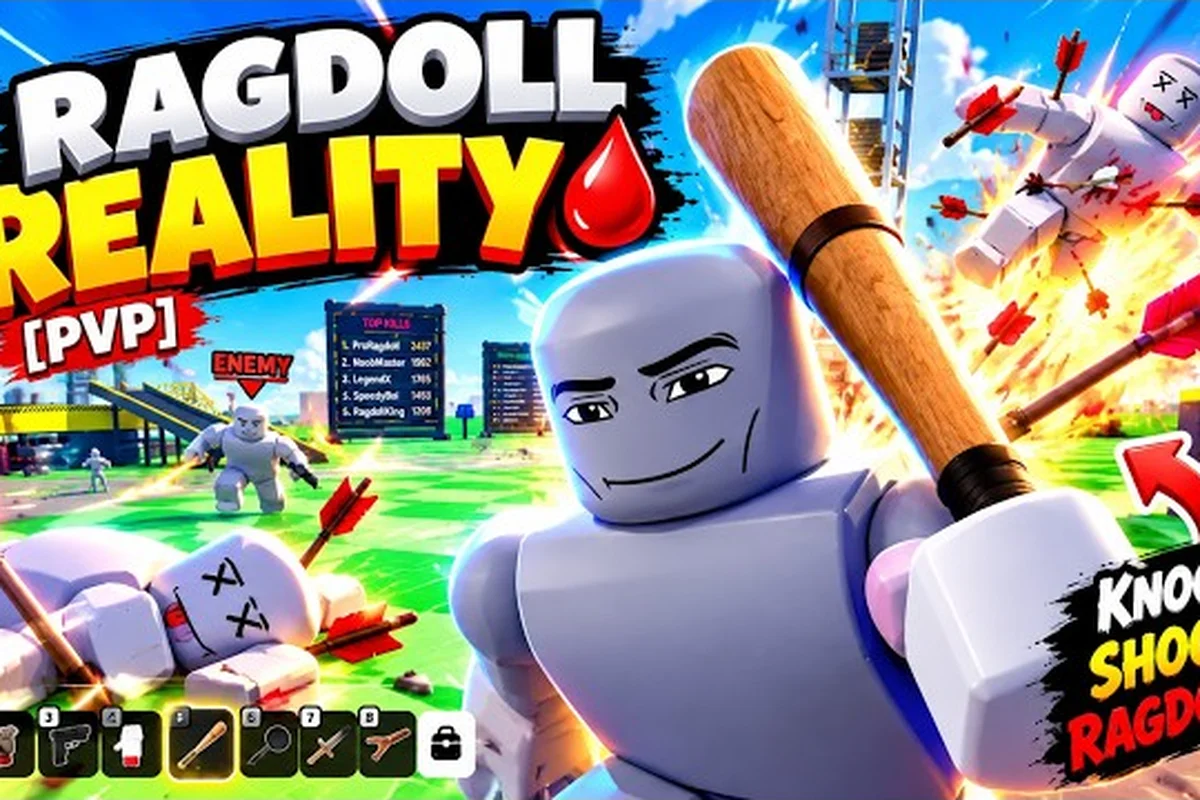
Ragdoll Reality Control Guide: Grab, Throw, and Attack
Use this Ragdoll Reality control guide to learn movement, grabbing, throwing, punching, weapon actions, and practical combat combinations.
Ragdoll Reality Controls: Aim, Move, Grab, and Fire
Master ragdoll reality controls for movement, aiming, weapon attacks, grabbing, throwing, and solo play across PC, console, and mobile devices.
Ragdoll Reality Game Page: Devices and Solo Play Guide
Explore the Ragdoll Reality game page, including device support, controller options, system requirements, age rating, and solo play.
All Articles
Ragdoll Reality How to Join: Start, Fix, and Rejoin
Learn how to join, reconnect, and troubleshoot Ragdoll Reality loading or low-FPS issues while checking graphics settings before entering.
Ragdoll Reality Mobile Controls: Touch Layout and Setup
Master ragdoll reality mobile controls for moving, jumping, grabbing, throwing, aiming, and firing with standard Roblox touch inputs.
Ragdoll Reality Settings: Fix Lag and Improve Performance
Optimize ragdoll reality settings for smoother play, troubleshoot lag and bugs, confirm the game is free, and check Roblox platform access.
Ragdoll Reality How to Play With Friends: Server Guide
Learn how to play Ragdoll Reality with friends, including the current single-player limit, server size, and options for sharing sessions.