
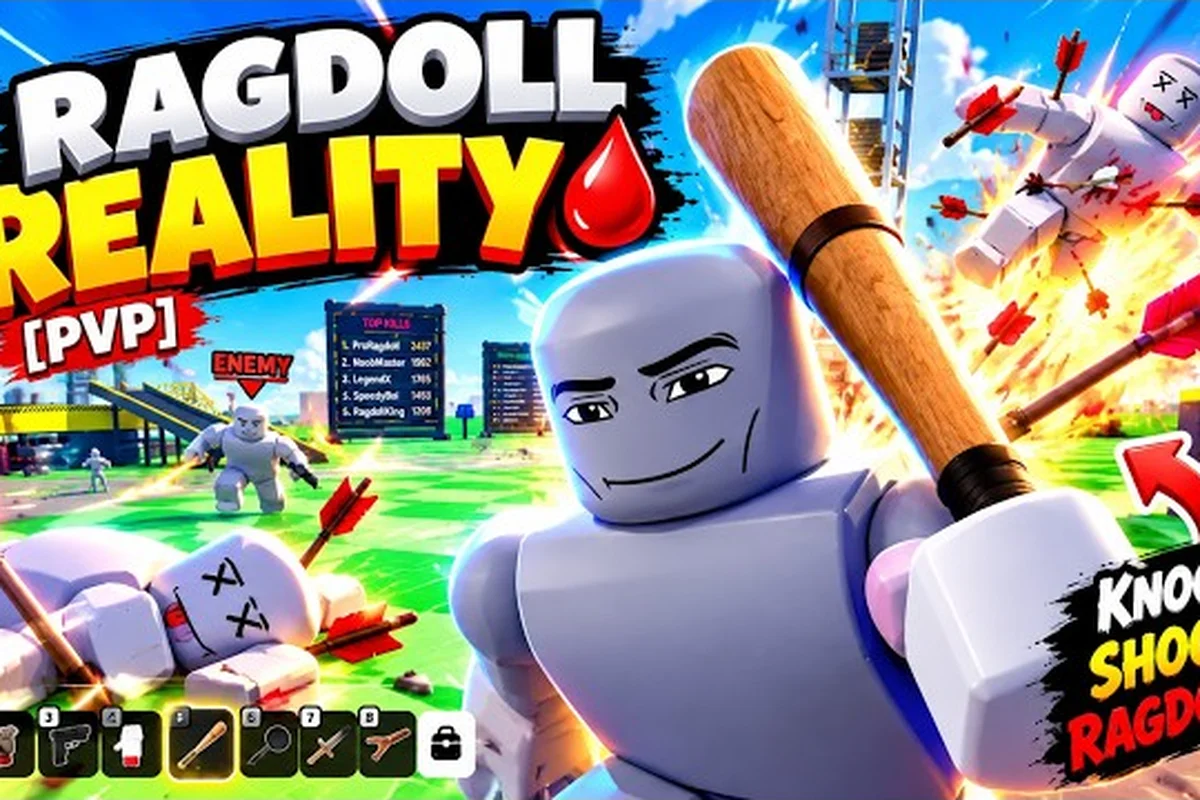
Ragdoll reality controls shape the difference between a clumsy struggle and a fast, readable chain of grabs, throws, and dodges in a chaotic playground. For example, mouse movement should control the reticle independently of the character’s momentum, while each mouse button can map to a separate grab or throw action; keyboard modifiers then let you release objects without losing aim. On PC, rebinding those inputs and testing sensitivity can reduce input delay, while the game’s device-specific control scheme determines whether console players use trigger thresholds or stick deflection. These choices matter most in multiplayer and co-op, where accurate ragdoll reality aim helps teammates position hazards, complete objectives, and avoid accidental knockdowns; solo play benefits from the same responsiveness when every grab must be timed manually.
Controls and Core Game Actions
Ragdoll Reality uses the familiar Roblox control scheme rather than a separate set of custom keybinds. That makes the basics approachable: movement follows the standard directional controls, while the action buttons let you grab, push, throw, use a weapon, and switch equipment. The important difference is that each action has to fit around physics-driven movement, so mastering the controls is about timing as much as button knowledge.
The official Ragdoll Reality game page identifies grabbing, pushing, throwing, using a weapon, and switching weapons as central actions. It also lists a weapon roster that includes Fists, Bat and Machete for close impact; Push and Grab as movement tools; Pistol, Shotgun, Sniper and Minigun for range; Rocket Launcher, Flamethrower and C4 for heavy effects. These actions matter because the map contains hazards such as the Shredder, the train, the wrecking ball, the spike pit, the human cannon and the seesaw.
| Action | What it does | Why it matters |
|---|---|---|
| Move | Directs your character through the environment | Positions you for attacks, grabs, and hazard avoidance |
| Jump | Moves you over objects and gaps | Helps you reach the tower or escape danger |
| Grab | Holds a nearby object or character | Creates opportunities to move, throw, or interact |
| Push | Applies force to another object or character | Useful for disrupting opponents and environmental setups |
| Throw | Releases a held object with momentum | Lets you create distance or hit a distant target |
| Use weapon | Activates the currently equipped weapon | Changes your attack options |
| Switch weapon | Changes the active weapon slot | Lets you match the tool to the situation |
The key beginner lesson is to treat the controls as a small action loop: position first, select the right action second, and release or retreat third. Trying to fire while moving through a tight area, for example, makes it harder to keep the target in front of you. The game’s physics reward deliberate spacing, especially around moving hazards.
Ragdoll Reality is built around a sandbox-style loop, so there is no single “correct” opening sequence for every session. A player who wants to attack may prioritize a weapon slot, while a player experimenting with the environment may start with Grab and Throw. The controls remain the foundation for both approaches.
PC Controls, Movement, and Action Timing
On PC, the most important part of ragdoll reality pc controls is separating movement from interaction. The standard directional and jump inputs handle locomotion, while mouse movement controls the camera and the action buttons handle physical interactions. Because Roblox games often place important actions on nearby buttons, you should learn the action layout before worrying about advanced tricks.
A reliable PC setup starts with a consistent basic loop: use WASD or the arrow keys to create space, use the mouse to keep the target centered, and press the relevant on-screen action button for Grab, Push, or Throw. In ragdoll reality pc controls, separating these inputs prevents a camera adjustment from disrupting your positioning, while deliberate timing reduces the risk of releasing a grab or throw at the wrong moment.
-
Use the directional keys or WASD movement keys to create distance from a target.
-
Turn the camera with the mouse until the target or object is centered.
-
Press the appropriate action button for Grab, Push, or the equipped weapon.
-
Release the action at the right moment, especially when Throw is involved.
-
Reposition immediately after the action so the animation or impact does not leave you exposed.
| PC input | Common function | Best use |
|---|---|---|
| W, A, S, D or arrow keys | Move your character | Line up a grab, dodge a hazard, or reach a target |
| Mouse | Turn the camera and adjust aim | Keep a weapon or held object pointed at the intended target |
| Space | Jump | Clear low obstacles or move toward elevated areas |
| Left mouse button | Usually fires or activates a weapon | Attack while maintaining a clear line of sight |
| Right mouse button | Often uses the camera or secondary action | Use it as a camera aid while tracking movement |
| Action buttons on screen | Grab, push, throw, or use the current item | Control the physical sandbox actions |
The exact button for each action can depend on the client, controls layout, and active equipment, so the best method is to check the on-screen control panel rather than memorize a fixed key from another Roblox game. This is especially important for ragdoll reality aim because the camera and action timing need to work together.
Players often report that a slower, deliberate rhythm is easier to control. Move a few steps, stop, center the camera, and then act. When the environment is crowded, this prevents a camera turn from pulling your movement in a new direction unexpectedly. A short pause can be more valuable than a fast sequence of inputs.
For more detailed input breakdowns and action combinations, see the Ragdoll Reality Control Guide: Grab, Throw, and Attack. That companion reference is useful once you understand the basic action loop and want to test more advanced combinations.
Aim Techniques for Better Attacks
Ragdoll reality aim is less about precision like a traditional first-person shooter and more about controlling the angle between your character, camera, and target. The game’s physics can make a character react naturally to impact, so your target may move, fall, bounce, or be displaced after the initial hit. A good player plans for that secondary movement rather than assuming the first contact is the entire outcome.
Start by choosing a target and placing your body at a slight angle. Standing directly in front of a weapon user is effective for basic attacks, but a diagonal position gives you more room to adjust if the target is pushed away. Keep the camera on the target while your character continues to move slowly, because a sudden turn combined with movement can make the attack feel inaccurate.
| Aim situation | Recommended approach | Common mistake |
|---|---|---|
| Target is close | Face the target directly and use a short, controlled action | Holding Throw too long and losing control of the item |
| Target is moving | Lead the movement slightly and keep the camera centered on the torso | Chasing the target with abrupt directional changes |
| Target is elevated | Move below or across the open area, then adjust the camera upward | Trying to attack at a steep angle without repositioning |
| Target is near a hazard | Approach from a safer angle and prepare to retreat | Standing between the target and the Shredder or spike pit |
| Several targets are present | Prioritize the nearest threat and establish space | Switching targets before the current action finishes |
A useful method is the three-line check: draw an imaginary line from your character to the target, another from the target to the nearest hazard, and a third from the camera to the target. If the lines conflict, move before attacking. This is especially helpful around the 80-stud tower, where a dropped dummy can change position unpredictably.
Weapon switching should happen during a natural pause rather than at the moment you are being pressured. The official page names more than twenty weapons, but it does not publish ammo counts, damage values, fire rates, or cooldown timing. That means you should not assume one weapon is universally best. Test the available tools in a safe area and compare how they feel, rather than treating community weapon rankings as official specifications.
When a target is moving, try smaller camera corrections instead of a full sweep. A precise, repeated adjustment keeps the target within your field of view and gives you more control over the physical outcome. If the target leaves the center of the screen, pause the attack and correct your position first.
Grabbing, Throwing, and Physics Interaction
Grabbing is one of the most distinctive parts of Ragdoll Reality, but it also depends heavily on timing. The official listing includes Grab as both an action and a named weapon entry, which suggests that interaction is a central part of the experience. Approach an object or character, select the interaction, and wait for the hold to register before changing direction.
The safest way to learn the mechanic is to use a large or stable object. Practice grabbing, rotating toward open space, and throwing while stationary. After that, repeat the same sequence while moving at a slow pace. This separates camera control from grab control and makes it easier to identify whether a missed action came from positioning, timing, or distance.
| Interaction stage | Input timing | Practical result |
|---|---|---|
| Approach | Move within interaction range | Increases the chance the grab connects |
| Select Grab | Press the action when the object is centered | Secures the object or character |
| Carry | Keep the hold while changing direction | Relocates the object to a useful position |
| Throw | Release the interaction with a clear forward view | Sends the object toward the intended direction |
| Recover | Move after release | Avoids being knocked down or pushed into a hazard |
Throwing works best when you leave a little room beyond the target. Holding the action while staring directly at a wall may result in an awkward bounce or a reduced throwing arc, whereas backing up gives the physics more room to work. This also applies when using a held weapon against a distant target.
Use Throw when you want distance, and use Push when you want to alter a target’s position without taking control of it. Push can be especially useful for moving a target away from a hazard, while Throw can send an object toward a target or across a gap. These distinctions are more reliable than trying to solve every problem with a weapon.
The map’s seesaw and wrecking ball make positioning important because a throw can change the balance of an object or trigger movement in the environment. Before interacting with a large hazard-related object, check where it will land and whether your own character will be in the impact path. The mobile controls reference also covers touch-specific interaction timing if you are not playing on PC.
PC, Console, and Mobile Control Differences
Device support follows Roblox itself, and the game does not publish a separate Ragdoll Reality control chart with platform-specific keybind requirements. That means the safest approach is to learn the action categories first, then map them to whatever button layout your device currently displays.
On PC, mouse movement offers precise camera control, which makes it easier to center a target for a weapon attack. On console, a stick and trigger arrangement can provide a similar relationship between movement, camera, and firing, although sensitivity and dead-zone settings may require adjustment. On mobile, the on-screen joystick and action buttons make positioning more dependent on deliberate movement, since there is no physical mouse for fine camera correction.
| Device | Movement | Camera or aim | Interaction emphasis |
|---|---|---|---|
| PC | Keyboard directional input | Mouse-driven camera | Precise centering and quick weapon changes |
| Console | Left stick or directional pad | Right stick and trigger layout | Trigger timing and camera sensitivity |
| Mobile | Virtual joystick | Swipe or touch-based camera control | Deliberate positioning and larger touch targets |
| Keyboard without mouse | Keyboard movement | Limited camera adjustment | Better for menus, navigation, and basic movement |
When using a keyboard without a mouse, the experience depends on the client and available accessibility settings, so do not assume every camera action is available. Check the settings and on-screen prompts for the current session. The same principle applies to console and mobile: the control categories remain consistent, but the physical execution changes.
Ragdoll reality multiplayer deserves special attention because the official server listing shows a maximum of one player and no VIP servers as of the captured data. In other words, a listed multiplayer experience should not be mistaken for a co-op mode. Ragdoll reality co op sessions may appear through changing server data or community arrangements, but the official page does not confirm standard cooperative play. Players who want to understand the server model can review the Ragdoll Reality How to Play With Friends: Server Guide.
Solo Practice, Testing, and Control Troubleshooting
Ragdoll reality solo play gives you room to test each action without another player interrupting the timing. Begin in a clear area, learn the camera, then add movement. After that, introduce one variable at a time: grab while moving, throw after a turn, or switch weapons during a retreat. This approach makes it easier to solve a control problem instead of changing several inputs at once.
A useful practice session follows this progression: start with camera movement and basic locomotion, then introduce one control interaction at a time so you can identify which input caused a miss, delay, or awkward landing. For example, if a grab repeatedly fails, stop moving and check whether the target is within interaction range before changing camera sensitivity. This isolation method turns Ragdoll Reality controls into a measurable sequence rather than a series of overlapping adjustments, making each correction easier to verify.
-
Walk around a flat area and test the camera at several speeds.
-
Jump over small objects and practice landing while facing a new direction.
-
Grab a stationary object, carry it briefly, and release it without moving.
-
Add a short sidestep before throwing.
-
Test a weapon at close and medium range.
-
Repeat the sequence near a hazard, adding an emergency retreat.
| Symptom | Likely cause | Correction |
|---|---|---|
| Aim drifts while moving | Camera and movement are being adjusted together | Reduce mouse or stick speed and separate the inputs |
| Grab misses repeatedly | Target is too far or the action was pressed too early | Center the target and approach within interaction range |
| Throw lands short | Character is too close to a wall or has no space behind | Step backward before releasing |
| Weapon action feels delayed | The target was moving or the camera was off-center | Pause, re-center, and fire again |
| Controls feel unresponsive | Layout or client setting differs from expectations | Check the current on-screen control panel and settings |
These are troubleshooting habits rather than confirmed hidden settings. The official page does not provide dedicated instructions for aim sensitivity, dead zones, or custom keybinds, so adjust only the options your own client exposes. If a control behaves differently after an update, restart the session and recheck the action prompts before assuming the change is permanent.
Community reports often emphasize practice, but the useful version of that advice is specific: repeat the same five-second sequence until the input-to-result relationship becomes automatic. For example, face a target, approach, center the view, use the weapon, and retreat. The Ragdoll Reality Tips and Tricks for Quick Starts article can help add session-level habits once your basic inputs feel consistent.
Frequently Asked Questions
What is the best way to learn Ragdoll Reality controls?
Start with movement, camera control, Grab, and Throw before adding weapons. Practice each action in a clear area, then combine them slowly: move, stop, center the target, act, and reposition. This makes it easier to tell whether a mistake came from the camera, timing, or movement. The game’s physics make deliberate sequencing more reliable than rapid input.
Does Ragdoll Reality support multiplayer or co-op?
The official server listing shows a maximum of one player and no VIP servers as of the captured data, so standard co-op is not confirmed. Some community or private arrangements may differ, but the official page does not advertise a normal cooperative server mode. Treat Ragdoll Reality multiplayer experiences cautiously and verify the current server information before joining.
How do I improve my aim in Ragdoll Reality?
Keep the camera centered on the target, use smaller corrections, and separate your body movement from your view adjustment. Because the game uses physics-based interactions, a hit can displace or send a target in a new direction, so watch the result rather than assuming the first contact is final. Practice against moving targets and near hazards to build useful control.
Can I play Ragdoll Reality on mobile?
Yes, because device support follows Roblox rather than a separate game-specific requirements list. Touch controls use an on-screen movement area and action buttons, so accuracy depends more on deliberate positioning than on a mouse or controller stick. Check the prompts displayed by the current client, and use the mobile controls guide for a more detailed breakdown of touch actions.
What should I do if a grab or throw does not work?
Move closer, center the object or character, and press the action at a steady moment. For Throw, leave open space behind you before releasing so the character has room to generate momentum. If the action still fails, check the current control layout and restart the session, because the official page does not publish a fixed custom keybind chart for every device.
The essential Ragdoll reality controls are simple enough to learn quickly but valuable enough to shape every encounter. Master the camera, give each physical action room, and use movement to create reliable opportunities rather than forcing awkward attacks. That foundation works across devices, supports solo experimentation, and keeps you ready for the weapons and hazards that define the playground.